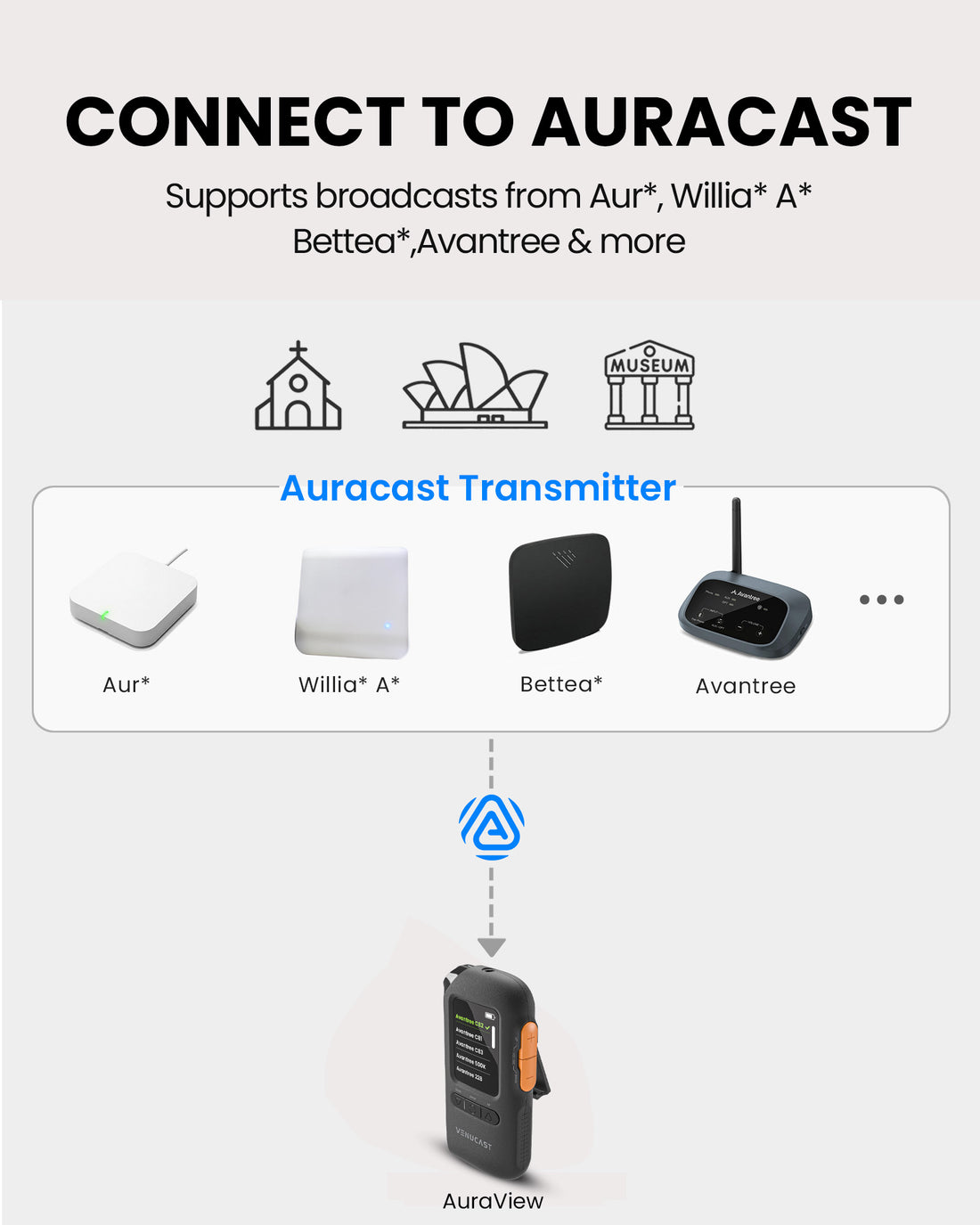
A. Broadcast source
An open Auracast broadcast is required
- Open Auracast venue broadcast


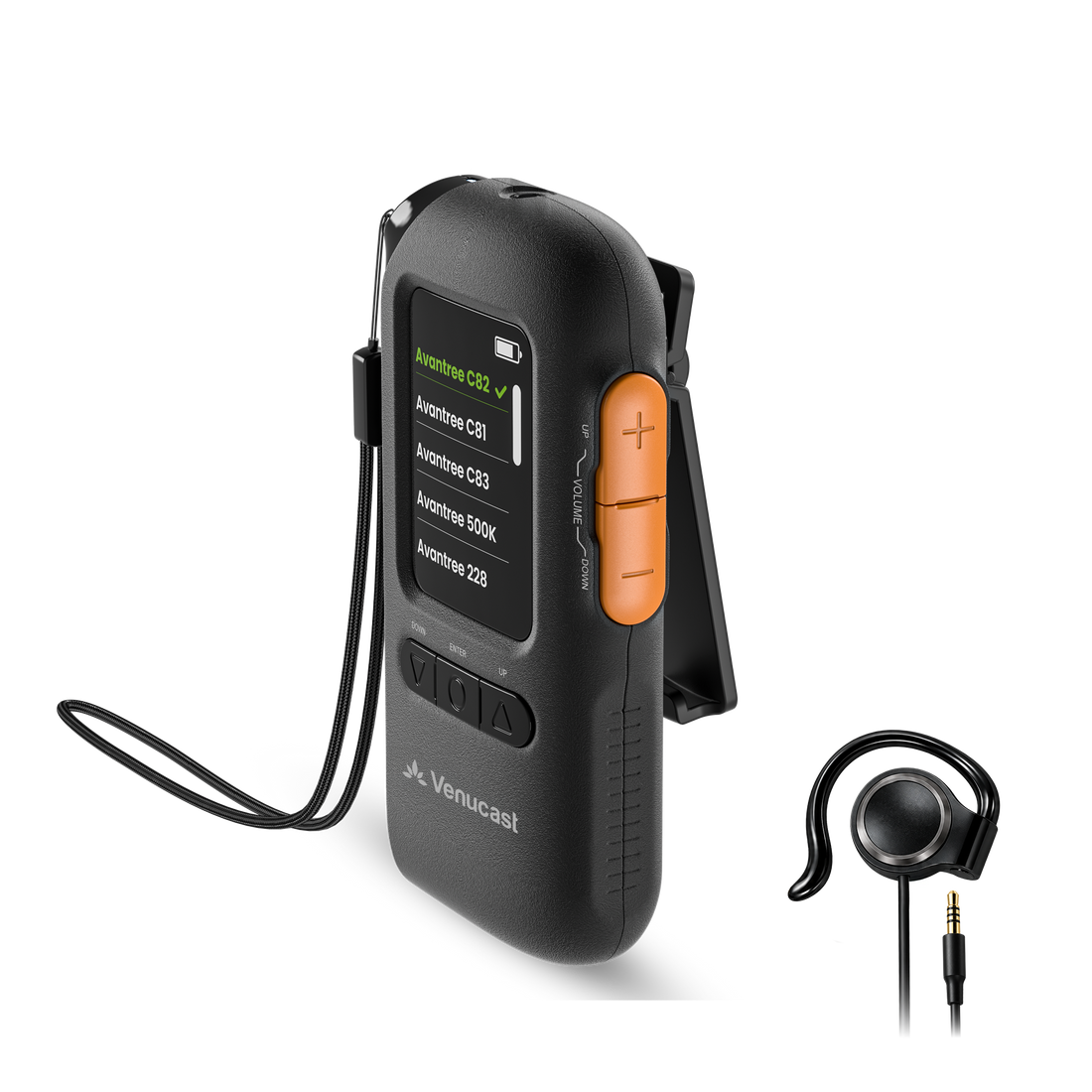

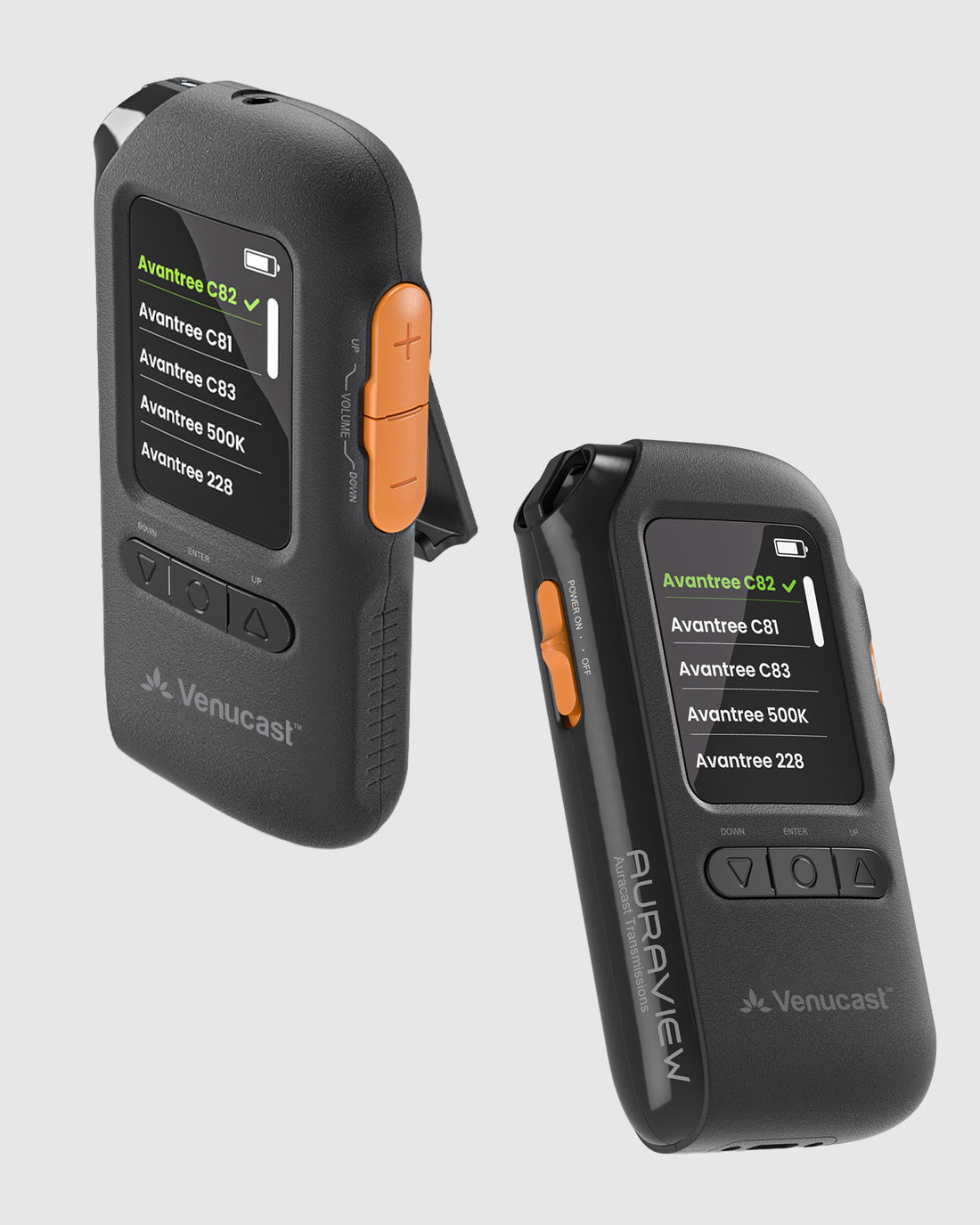
Screen-Guided Auracast Receiver
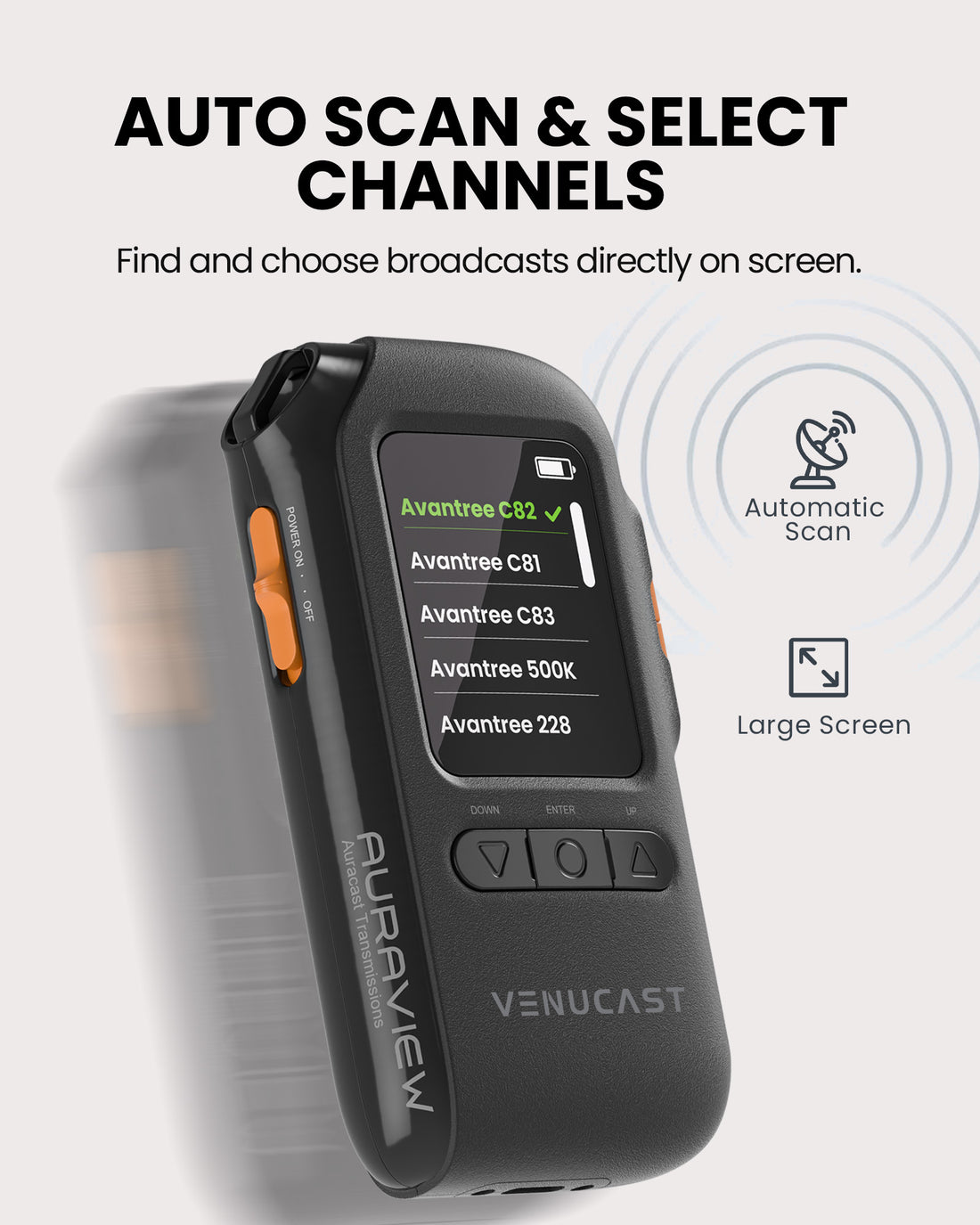
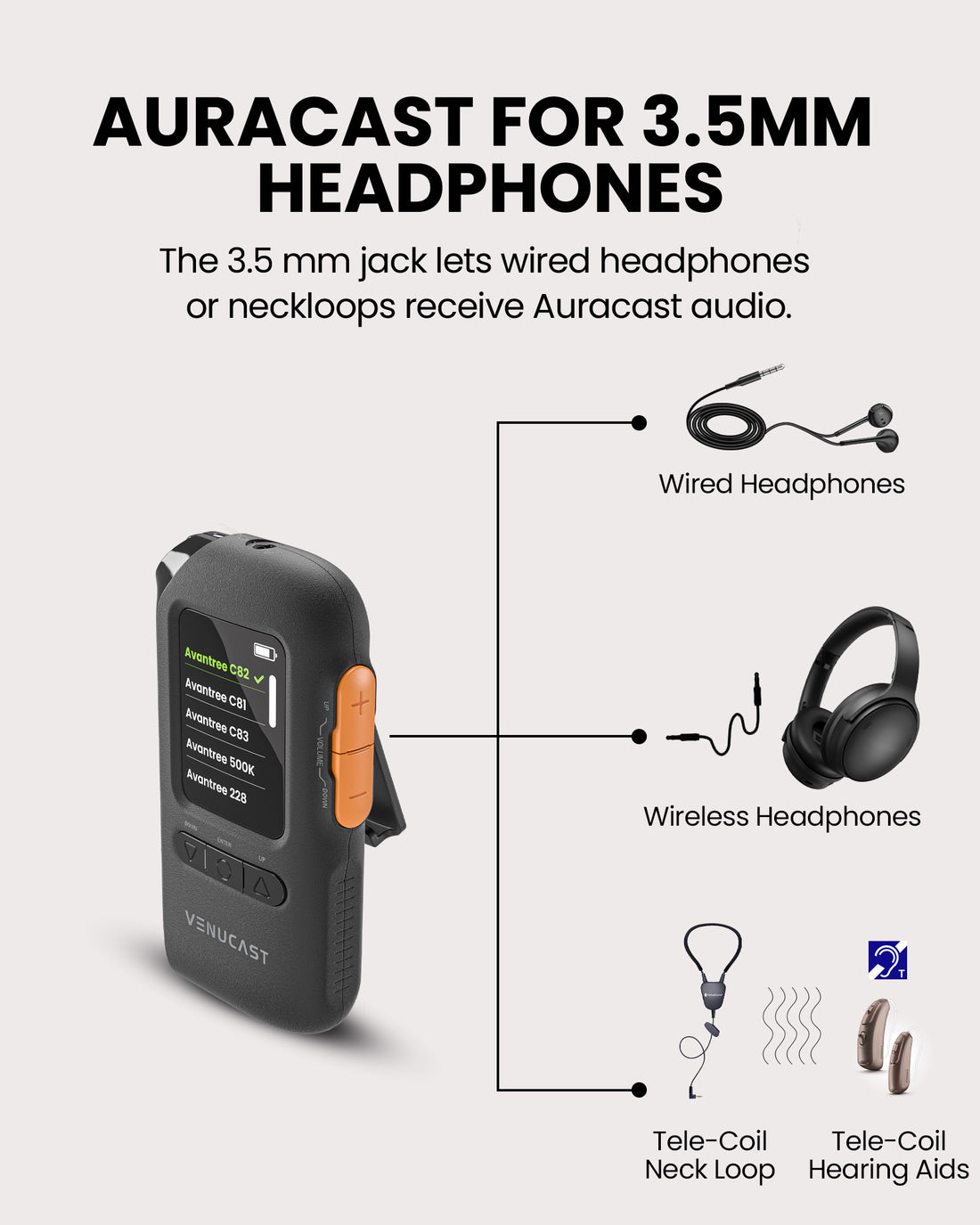
Select an open Auracast broadcast on the OLED screen and listen through wired headphones or a compatible T-Coil neckloop.
Checking the fastest delivery option…
01 · Best for
Best For
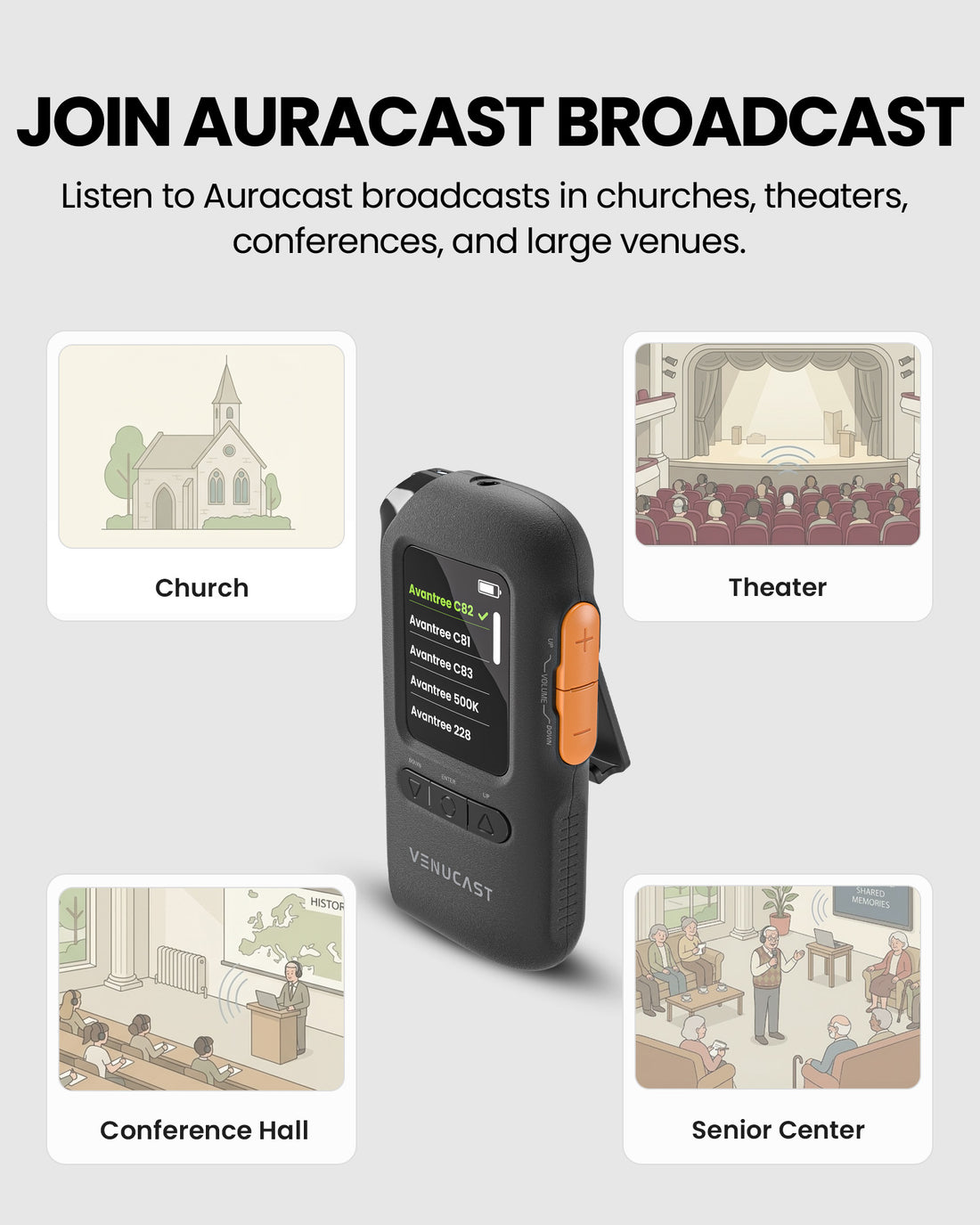
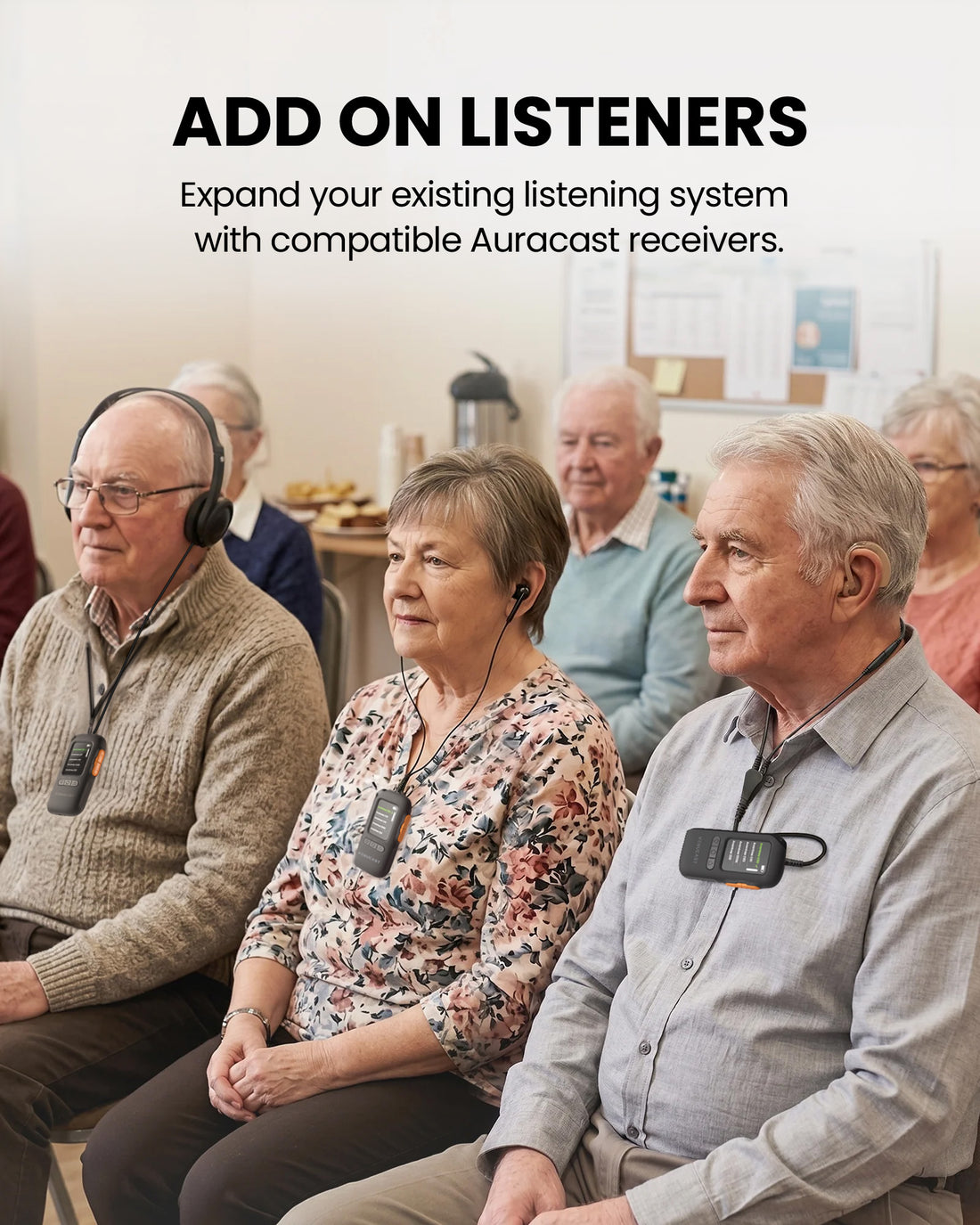
 Church & WorshipFollow sermons and music through wired headphones or a suitable T-Coil neckloop.
 Conference & PresentationsSelect the available open broadcast by name on the screen.
 Classroom & TrainingLet each listener set a comfortable volume for lessons and training.
 Community & Public VenueProvide screen-guided listening where an open Auracast broadcast is available.
Before buying
Check the broadcast source and the listening pathway before ordering AuraView.
A. Broadcast source
B. Listening pathway
The current AuraView guide supports open broadcasts. The product description also mentions secured broadcasts; confirm current support before planning encrypted listening.
02 · Addons & Accessories
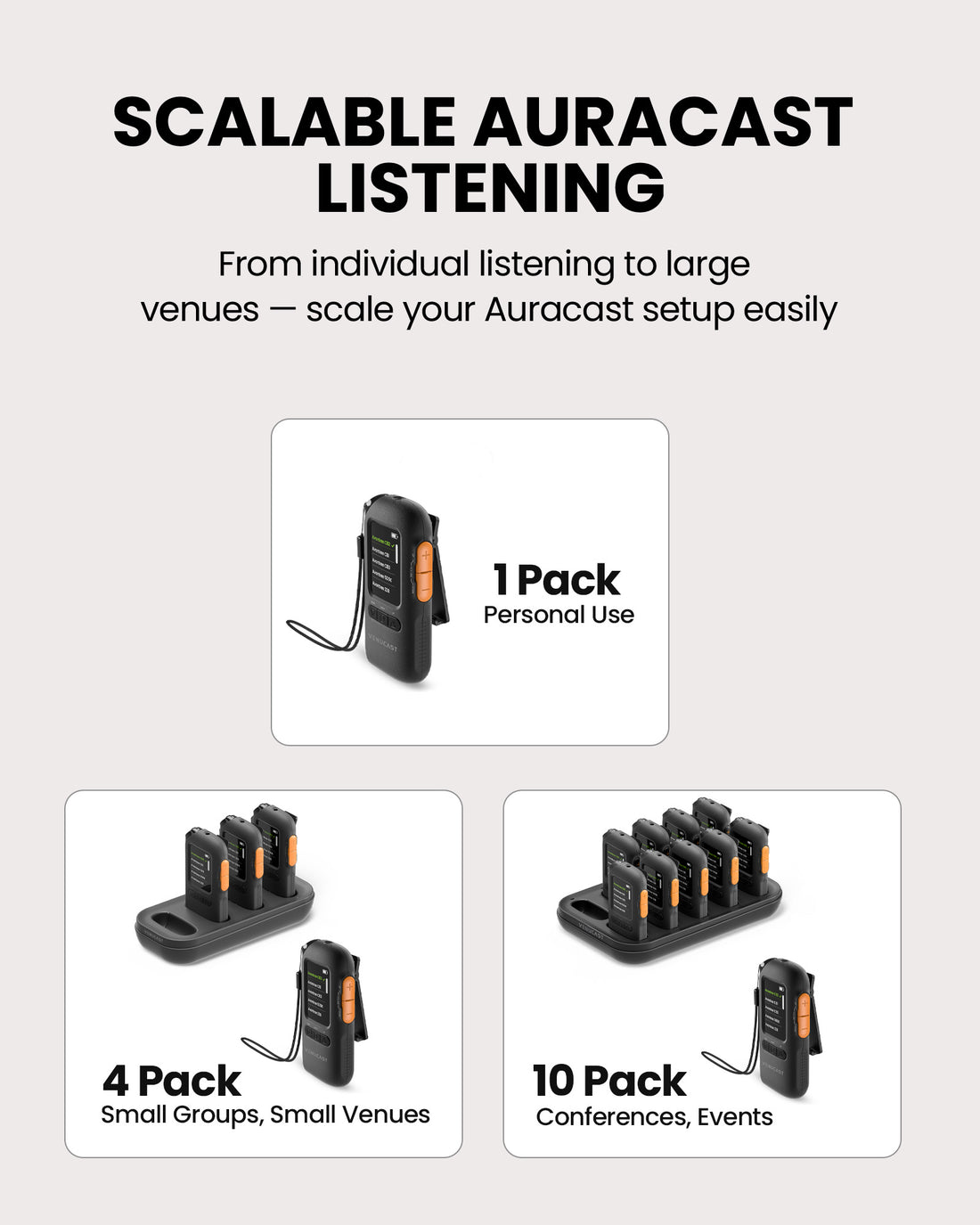
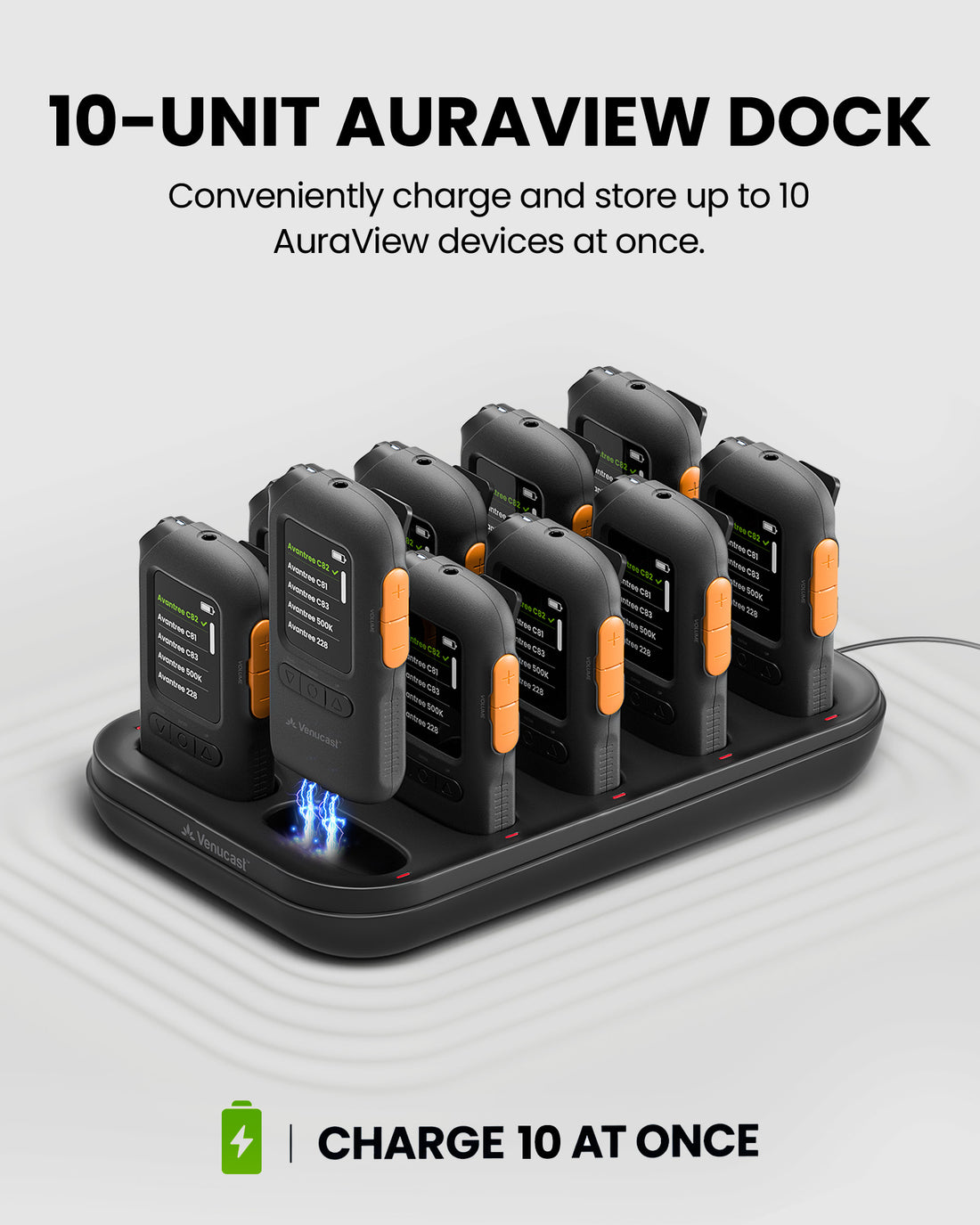
 AuraPlex Pro-View 10AuraView Auracast Receiver System 10 Pack with AirCast Transmitter & Charging Dock, OLED Display Assistive Listening Devices for Church, Conference, Thea...
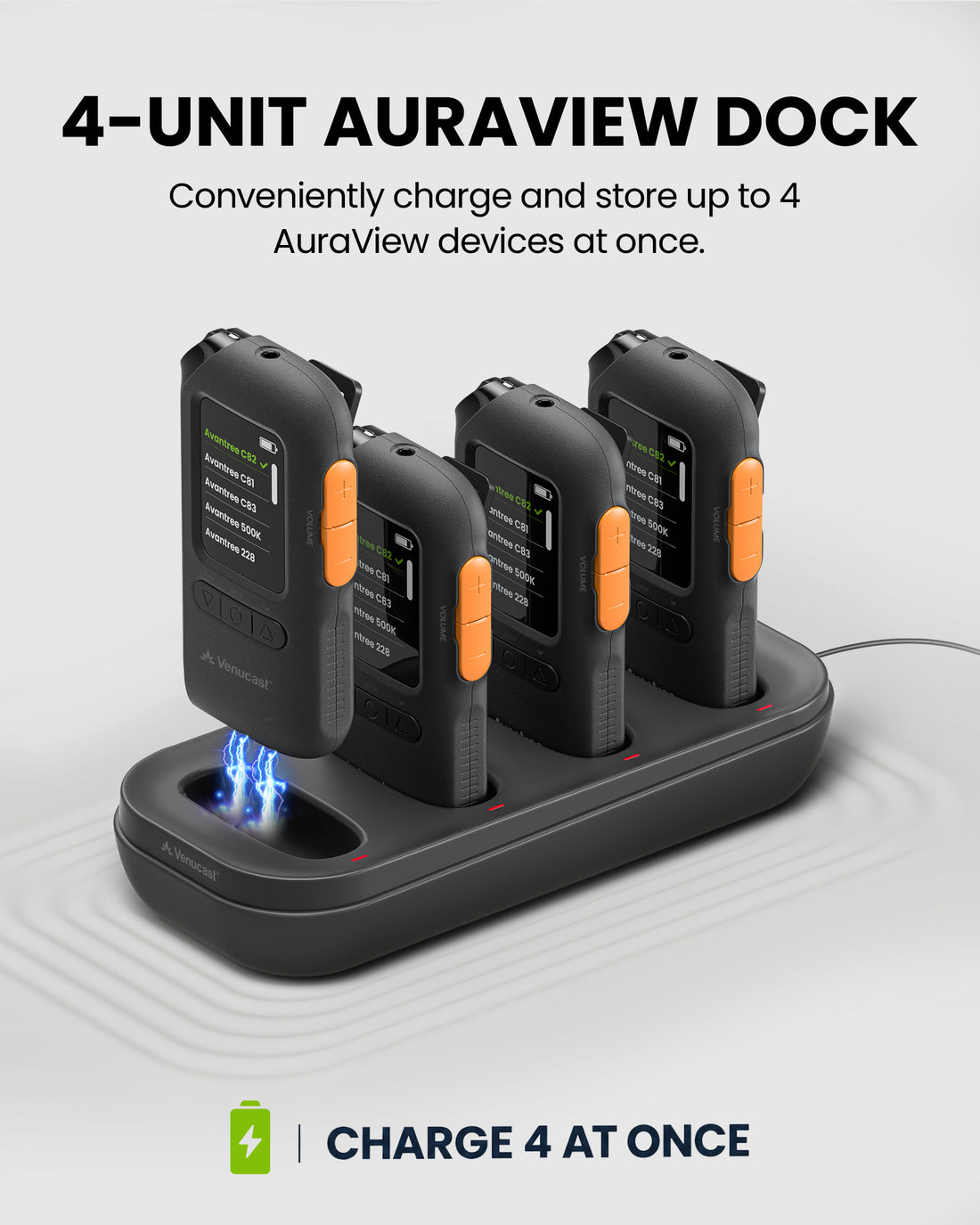
 AuraPlex Pro-View 4Auracast Receiver System 4 Pack with AirCast Transmitter & Charging Dock, OLED Display Assistive Listening Devices for Church, Conference, Theater, Senio...
 AuraView 10-PackAuraView Auracast Receiver System 10 Pack with Charging Dock, OLED Display Assistive Listening Devices for Church, Conference, Theater, Senior Centers
 AuraView 4-PackAuraView Auracast Receiver System 4 Pack with Charging Dock, OLED Display Assistive Listening Devices for Church, Conference, Theater, Senior Centers
03 · Product Details
The guide confirms the receiver and included single-ear earphone. The complete single-unit package list has not yet been verified.
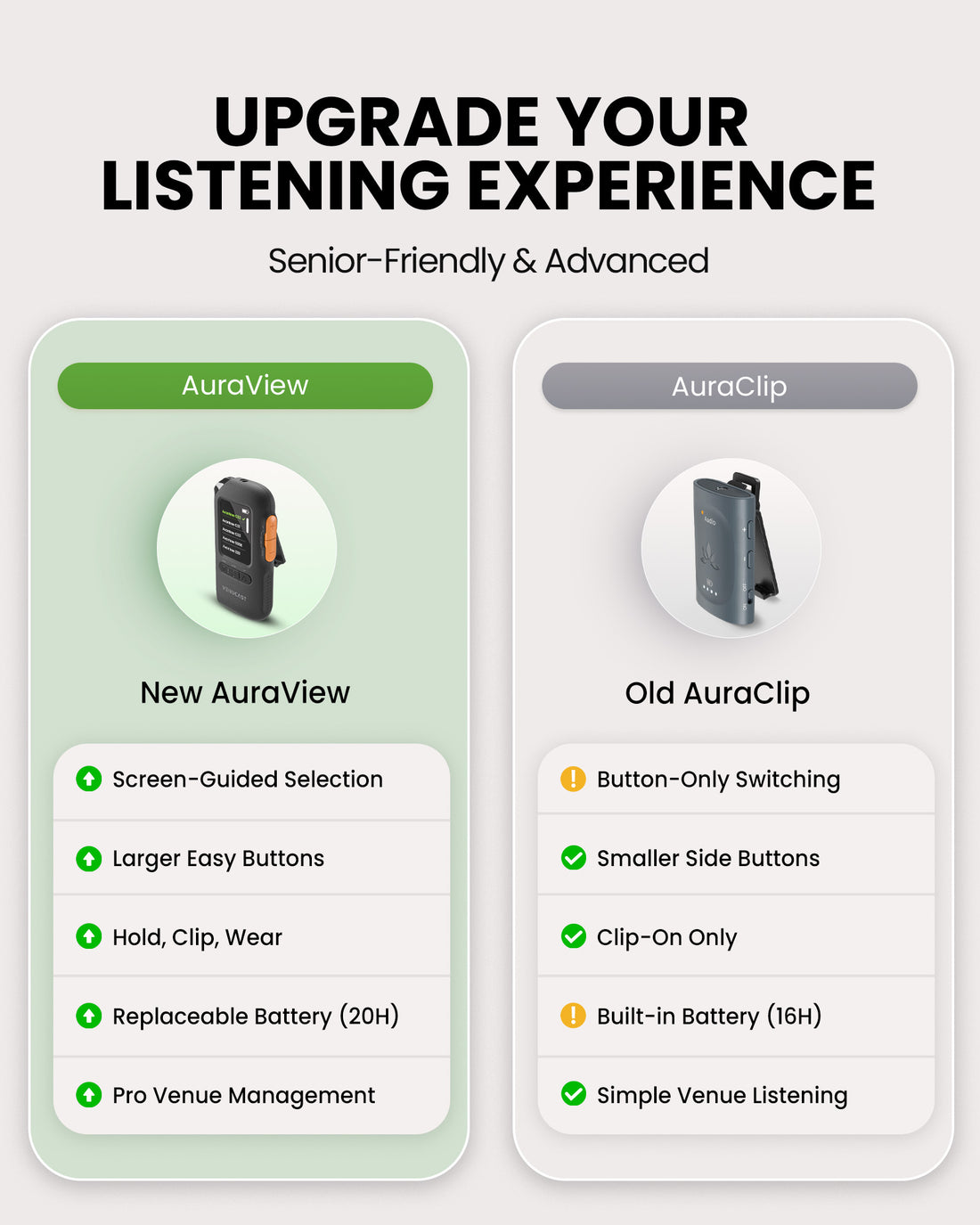
Simple by design
The current AuraView guide supports open broadcasts. The product description also mentions secured broadcasts; confirm current support before planning encrypted listening.
04 · Setup & Config
Product-specific connection, operation and care instructions.
Venue signage, listener materials, and hearing-aid connection guides.
Get help with AuraView connections, sound and operation.
Common Questions